Install from the Chrome Web Store
- Open the Grok Automation listing and click Add to Chrome, then Add extension in the confirmation dialog.
- Pin the extension so its icon stays visible. Click the puzzle-piece icon in Chrome’s toolbar, find Grok Automation, and click the pin icon next to it.
Open the side panel on grok.com
- Open
grok.com/imaginein the same Chrome profile and sign in to Grok with your usual xAI account. - Click the Grok Automation toolbar icon. The side panel docks on the right of the window.
The side panel only does useful work on
grok.comitself. Opening it on any other page shows a “Open Grok to start” prompt with a button that takes you togrok.com/imagine.
Sign in with Google
Grok Automation uses your Google account to track your free quota and unlock paid features. The sign-in lives inside the extension — it has nothing to do with your xAI account, and we never see your Grok credentials.
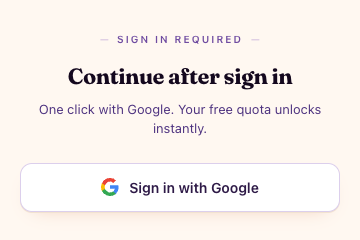
- On first launch the panel shows a “Sign in required” screen. Click Sign in with Google.
- A small OAuth window opens. Pick the Google account you want associated with your free quota.
- The window closes itself and the panel transitions to the main view. You’re done.
What you should see when it worked
A working install shows three things in the side panel:
- The Grok Automation logo and the “Batch prompt runner” tagline in the header.
- The mode tiles row at the top of the body, with Text to Image selected by default.
- A big Run → button at the bottom (disabled until you type a prompt).
If you instead see a blank cream surface that never resolves, the OAuth window is probably stuck — close it and click Sign in with Google again. If the panel insists you’re on the wrong page, double-check the URL bar reads grok.com/..., not x.ai/... or x.com/....
Updating later
Chrome auto-updates extensions in the background, usually within 24 hours of a release. If you want the latest build right now, open chrome://extensions, flip Developer mode on, and click Update. No re-sign-in needed — your free quota persists.